VarioPro2 80
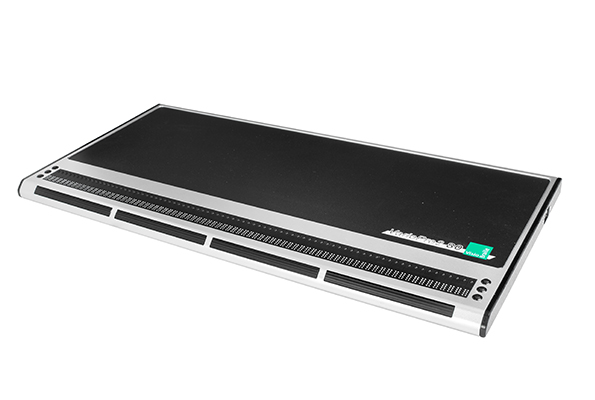
The professional 80-cell Braille display with individually configurable rollbars for working comfortably and efficiently.
Our highly functional and flexible braille display VarioPro2 was designed for demanding educational and workplace applications with changing requirements. It is equipped with innovative roll bars that allow blind users to read without interruption for the first time, simplify operation of the display, and enable quick orientation on screen.
The braille display that meets your future requirements too
Whether you are in education or already working professionally — your computer is your most important tool. Every day you use applications that you want to operate quickly and easily. And you are constantly faced with new tasks that need to be integrated into your workflow. It is precisely for these kinds of study and workplace conditions that we developed our highly functional braille display VarioPro2, driven by screen readers. The display can be flexibly adapted to the working style of its users, allowing it to be tailored at any time to growing demands — without the need for major new purchases.
Innovative and reliable
The VarioPro2 is equipped with innovative roll bars on the front of the device, operated with the thumbs. For the first time, blind users can read without interruption, as their reading fingers remain on the braille display. The VarioPro2 has four roll bars that can be assigned identical or different functions, simplifying overall operation and enabling faster orientation on screen. The high-quality finish of the flat, elegant display — made from solid anodised aluminium — is extremely stable and durable. Our many years of experience in developing and manufacturing professional braille displays, combined with the use of the latest technology, guarantees high reliability and long service life. 80-cell braille displays are today the standard for workplace and educational settings.
Arguments for professional use
- uninterrupted reading thanks to innovative rollbars
- Future-ready & flexibly adaptable
- designed for daily, long-term professional use
- maximum ease of use
- high-quality construction and reliable technology
Technical Specifications
Features
- 80 braille cells with routing keys
- 3 function keys left and right of the braille display
- 4 pushable roll bars
- Integrated USB hub with 3 USB ports
Compatibility
- Via screen reader
- PC, MAC and laptop
Dimensions and Weight
- 56.1 × 2.3 × 26.0 cm
- 22.1 × 0.9 × 10.2 inch
- 3,7 kg
Connectivity
- 1 USB-C port
- 3 USB (Type A) ports
Downloads
Firmware, manuals and brochures for the VarioHID 40.
Each file lists its format, size and language so you know what you are getting before you download.
Which drivers and downloads do I need?
Depending on the screen reader you use, different PC drivers, plug-ins or configuration steps may be required.
Last updated 21 September 2026
Windows
To use the device under Windows, you generally need the FTDI Gerätetreiber.
JAWS
If you want or need to use JAWS with the previously popular VarioClassic-protocol, the JAWS Extension v15.53 is required.
NVDA
To use the device with NVDA, this NVDA Add-On is required.
PC-Drivers
Drivers for the PC to ensure smooth operation of a connected braille display.
Windows FTDI Device Driver
5 September 2024 (ZIP | 1.47 MB)
The new FTDI device driver is mandatory under Windows 11. It completely removes any older drivers that may be present, as these no longer work due to core isolation in Windows 11.
For Screenreaders
Extensions, configurations and more for smooth operation with different screen readers.
JAWS Extension v15.53
May 2026 (ZIP | 2.96 MB)
Often referred to as a "JAWS driver", this is not a device driver but a certified JAWS extension that allows connected braille displays to be detected automatically.
The ZIP file contains detailed installation instructions for the extension.
NVDA Add-on
22 September 2026 (ZIP | 610 KB)
This NVDA add-on adds the braille displays of the VarioPro family to NVDA and thereby makes them usable.
NVDA must be running when you install this add-on; you can then simply run it from File Explorer and follow the steps shown in NVDA.
After restarting NVDA, you need to select the VarioPro manually under Options → Settings → Braille. Automatic detection is unfortunately not possible with this add-on.
Manuals
The latest manual as well as help with frequently asked questions
Manual VarioPro2 80
Official manual for the VarioPro2 80
04/2023 (PDF |833 KB)
Brochures & data sheets
Compact information on features and technical data, for sharing or printing.
Flyer VarioPro2 80
05/2026 (PDF | 0.5 MB)
Compact information on your VarioPro2 80
Our Application Areas

School and education

Profession

Mobile use